
Support / Internet
Internet Support
Use this page to help deal with internet outages, cabling questions, or when you're not sure what plugs in where. Look through the diagrams and the Common Problems & Quick Fixes section first — most issues are solved by a power-cycle or a simple cable check. If you're still not sure, please don't force anything — submit a ticket or call us and we'll walk you through it or schedule a service call. These devices use Power over Ethernet (PoE), and if connected wrong they can damage devices that don't support PoE.
Before you re-plug anything: check the labels.
The PoE injector (the small white brick) has an AC power connector on one side — that's where the AC power cable plugs in (it is not an Ethernet port). On the other side it has two RJ45 Ethernet ports. One is labeled PoE in red and carries 24 volts — that port is for the outdoor radio only. The other port is normal LAN — it goes to the router. Never plug a PC, TV, phone, or other non-PoE device into the PoE port.
The PoE injector brick — what to look at
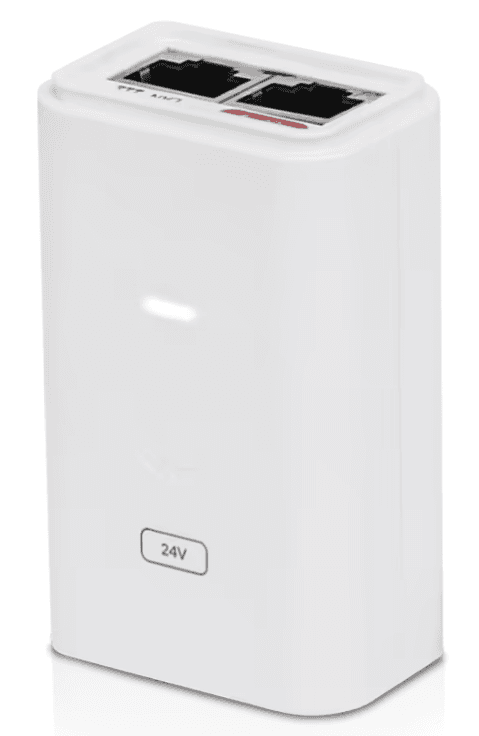
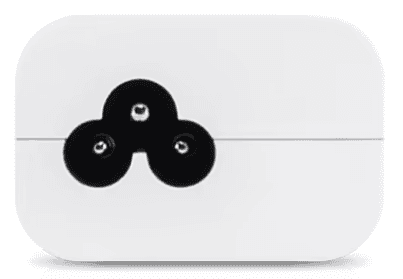
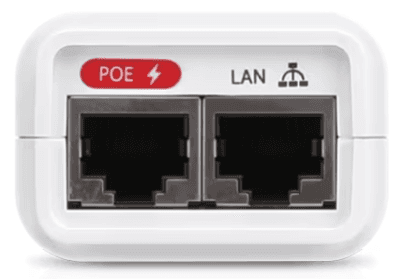
What each piece does
Outdoor
CPE Radio
The dish or panel mounted on the outside of your home — points at our tower and carries your internet signal in. Powered by a single Ethernet cable that comes inside.
Power
PoE Adapter (Brick)
Small box that gets AC power and injects 24V onto an Ethernet cable to power the outdoor radio. One AC connector, two Ethernet ports (one PoE labeled red, one regular LAN).
Router
Your Router
The indoor Wi-Fi router distributes Wi-Fi around your home and connects to the internet via the CPE radio — linking your local area network (LAN) to the internet (WAN). Wi-Fi is not the internet; they're two separate things and can fail independently.
Inside
Your Devices
Laptops and phones connect over Wi-Fi. Smart TVs and VoIP adapters (Ooma Telo if using UltraWISP VoIP Service) are HIGHLY recommended to be plugged into a router LAN port with an Ethernet cable — Wi-Fi works, but a wired connection is more reliable for streaming and phone calls.
Router powered by its own DC adapter (PoE brick for the radio)
Two power adapters in this setup: one for the outdoor radio (the PoE brick) and a small DC adapter for the router. The radio and router are linked through the brick.
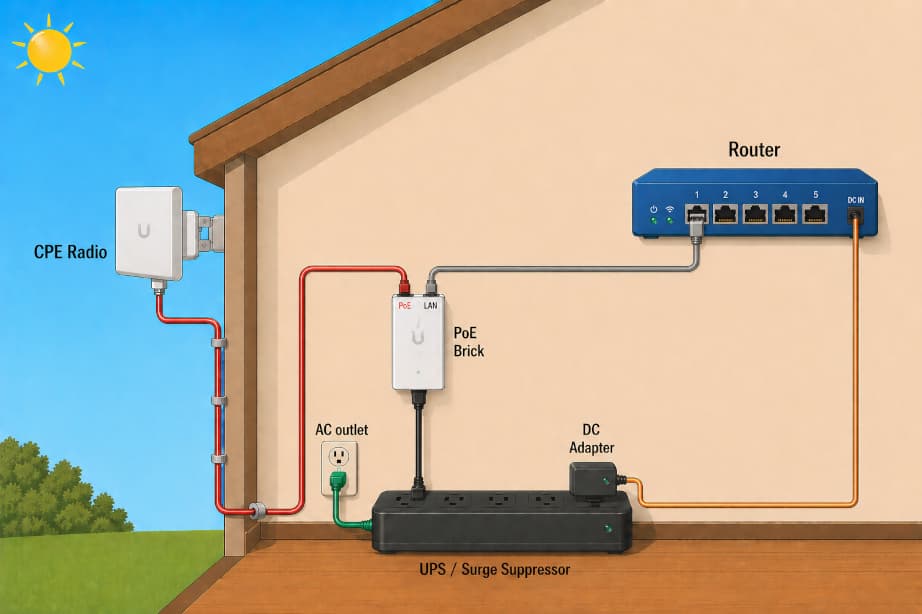
Quick checks
- The brick has one AC power connector and two Ethernet ports — one labeled PoE (to the outdoor radio) and one labeled LAN (to the router's Internet/WAN port).
- The router's DC adapter plugs into an AC outlet (or a UPS/Surge Suppressor outlet) at one end, and the small round DC plug goes into the router.
- If you have a UPS battery backup, plug the PoE brick and the router's DC adapter into the battery-protected outlets so internet stays up during short outages.
- Don't have a UPS? Strongly consider one — see our recommended UPS units.
Router powers the radio (no separate PoE brick)
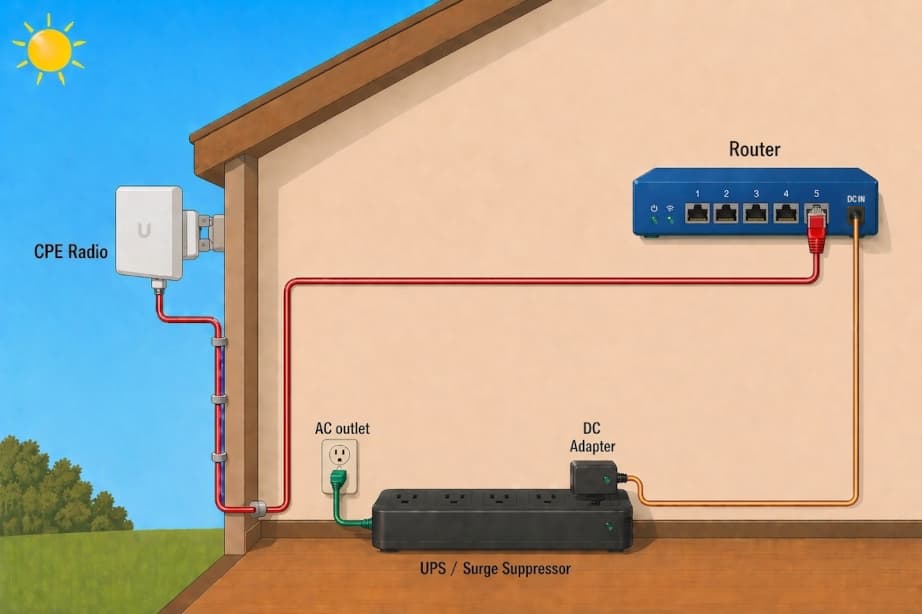
Some installs skip the PoE brick: the router itself powers the outdoor radio out of port 5 (the PoE-out port). There's only one power adapter in the whole setup — the router's DC adapter.
Quick checks
- One Ethernet cable runs between the router and the outdoor radio. That cable carries 24V — only the radio belongs on the other end.
- The cable from the radio plugs into port 5 on the router (the PoE-out port). Don't move it to a different port — the radio will lose power. And don't plug a non-PoE device (PC, TV, phone, etc.) into port 5 — port 5 is feeding 24V of DC power and will likely damage anything that isn't built to receive it.
- The router's DC adapter plugs into an AC outlet (or a UPS/Surge Suppressor outlet) on one end and into the round DC jack on the router on the other.
- If you don't see a separate PoE brick anywhere — not on the floor, not on a shelf, not plugged into your UPS or surge strip — you have this setup.
- A UPS battery backup is just as helpful here as in Setup A — see our recommended UPS units.
How to power-cycle your internet
This is the first thing to try whenever the internet isn't behaving — fully restarting the equipment fixes a surprising number of issues, especially after a power blip.
- Unplug the router's DC adapter from the AC outlet (or UPS).
- Unplug the PoE brick from the AC outlet (or UPS) too. (Setup B users skip this — there's no separate brick; step 1 already cuts power to the radio.)
- Wait 30 seconds. Don't skip this — capacitors need time to fully drain.
- Plug the PoE brick and the router back in. (Setup B users skip plugging in the PoE brick like in step 2.) Wait 2 to 4 minutes — the radio takes longer to fully connect to the tower than the router does.
- Try your devices. Wi-Fi and wired devices should reconnect on their own.
If internet still doesn't come back after the radio and router are both fully booted, please submit a ticket or call us.
Common problems & quick fixes
Try the suggestions here first — most outages and slowdowns are fixed by a power-cycle. If nothing here resolves the issue, see the catch-all card at the bottom of this section.
Wi-Fi vs internet — they're different things
Wi-Fi is the wireless link between your devices and your router inside the home. Internet is the link from the router out through the CPE radio to our network. They're independent: Wi-Fi can be working great while the internet is down or degraded, and the internet connection can be perfect while Wi-Fi is down, slow, degraded or flaky.
If browsing or streaming feels slow, that's often a Wi-Fi or LAN issue — not the internet itself. If this is unusual, a power-cycle is a good first step. If that doesn't fix it, the diagnosis gets more involved (signal strength, channel interference, device count, distance, walls, etc.).
Internet is completely out after a power blip
- Power-cycle the router and CPE radio using the steps above.
- Make sure both adapters are plugged in (router's DC adapter and the PoE brick if Setup A).
- Wait the full 2–4 minutes — the radio takes longer to boot than the router.
Avoid this in the future: a UPS keeps the gear running through power blips so they don't knock the equipment offline at all — see our recommended UPS units.
Internet is unusually slow (especially after a power blip)
Even when a power flicker doesn't fully knock the equipment offline, it can leave the radio or router in a confused state that performs much worse than normal. Power-cycle both using the steps above and re-test.
Speeds still slow after that? Could be Wi-Fi/LAN rather than the internet itself (see the Wi-Fi vs internet card above).
Avoid this in the future: a UPS keeps the gear running through power blips so they don't knock the equipment offline at all — see our recommended UPS units.
Wi-Fi works but no internet
Usually means the router is up but the radio isn't reaching our tower. If you have Setup A, check the cable from the brick's PoE port to the outside — if it's loose, reseat it. Then power-cycle.
I bumped a cable while moving things
Match your setup to one of the diagrams above. Pay attention to which port on the brick the "outside" cable goes into (PoE, red label) vs the "router" cable (LAN). Switching them won't damage anything but the radio won't come up.
My internet doesn't work during a power outage
Internet needs power for the router and the CPE radio — both are off when the lights are off. A UPS keeps them running through short outages — see the UPS & getting through extended power outages section below and our recommended UPS units.
On our end: UltraWISP maintains commercial battery backup systems at the main network operations center and at each distribution point, plus generators to keep the network up through extended outages. So if you can keep your equipment powered, your internet service will most likely still work.
Lights are on, no internet, nothing changes after restart
If you've power-cycled everything and waited several minutes with no improvement — there's likely something happening on our side (tower, weather, upstream provider). Check our status page.
None of the above solved your issue?
Please submit a ticket or call us — we'd rather walk you through it (or schedule a service call) than have you guess or spend hours frustrated trying to figure it out, especially when the issue may be one only we can fix. Mention what you've already tried so we can pick up where you left off.
UPS & getting through extended power outages
Even if you have a generator, a UPS for your internet gear is worth having. UPS batteries do two important things:
- Ride through power blips. A 1–10 second flicker is enough to crash a router or radio. A UPS makes the flicker invisible to the gear.
- Protect the equipment from rough power — including from a generator. The router, radio, and (if you have VoIP) the Telo and your powered phone all run on small DC power adapters that don't love rough power. A UPS cleans up spikes, surges, and brownouts coming off the utility line — and just as importantly, it cleans up generator power. Consumer generators without a quality inverter put out dirty power that can damage or misbehave electronics; a UPS in line keeps your gear safe whether the source is the grid or a generator.
Pick a UPS with enough outlets
Count the AC adapters you'll plug into the battery side before buying:
- Internet only: 2 outlets — PoE brick + router DC adapter. The smaller UPS unit on our products page covers this case. (The larger unit gives you longer runtime if you want to stretch through extended outages — see below.)
- Internet + VoIP: 4 outlets — add the Telo and a powered phone (cordless base station, etc.). The larger UPS unit we recommend on the products page has the outlets and the runtime to handle this scenario.
Stretching UPS runtime through a long outage
When the lights go out and you don't know how long it will be, there's a smart way to use the UPS:
- Once it's clear power isn't coming right back, turn the UPS off. Don't leave the gear running on battery while no one's using it — you'll just drain the battery for nothing.
- When you actually need internet or the home phone — to make a call, check the news, send a message — turn the UPS back on. Wait the usual minute or two for the gear to boot.
- Use what you need, then turn the UPS back off until the next time you need it.
Used this way, a UPS that would normally last 30 minutes of continuous load can stretch across an all-day or even multi-day outage as a series of short, on-demand sessions. The larger the UPS, the more time you get. And the gear stays protected from dirty power coming back on the line.
Have a generator? A UPS recharges fully in a few hours — so instead of running the generator all day, run it for a few hours to top up the UPS, then shut the generator off. Use the UPS in short bursts (a few minutes at a time) for the rest of the outage. Less generator runtime, less fuel, and the UPS continues to clean the generator's power while it's running.
Still stuck?
Don't guess — we'd rather walk you through it on the phone (or by ticket) than have you plug something into the wrong port.